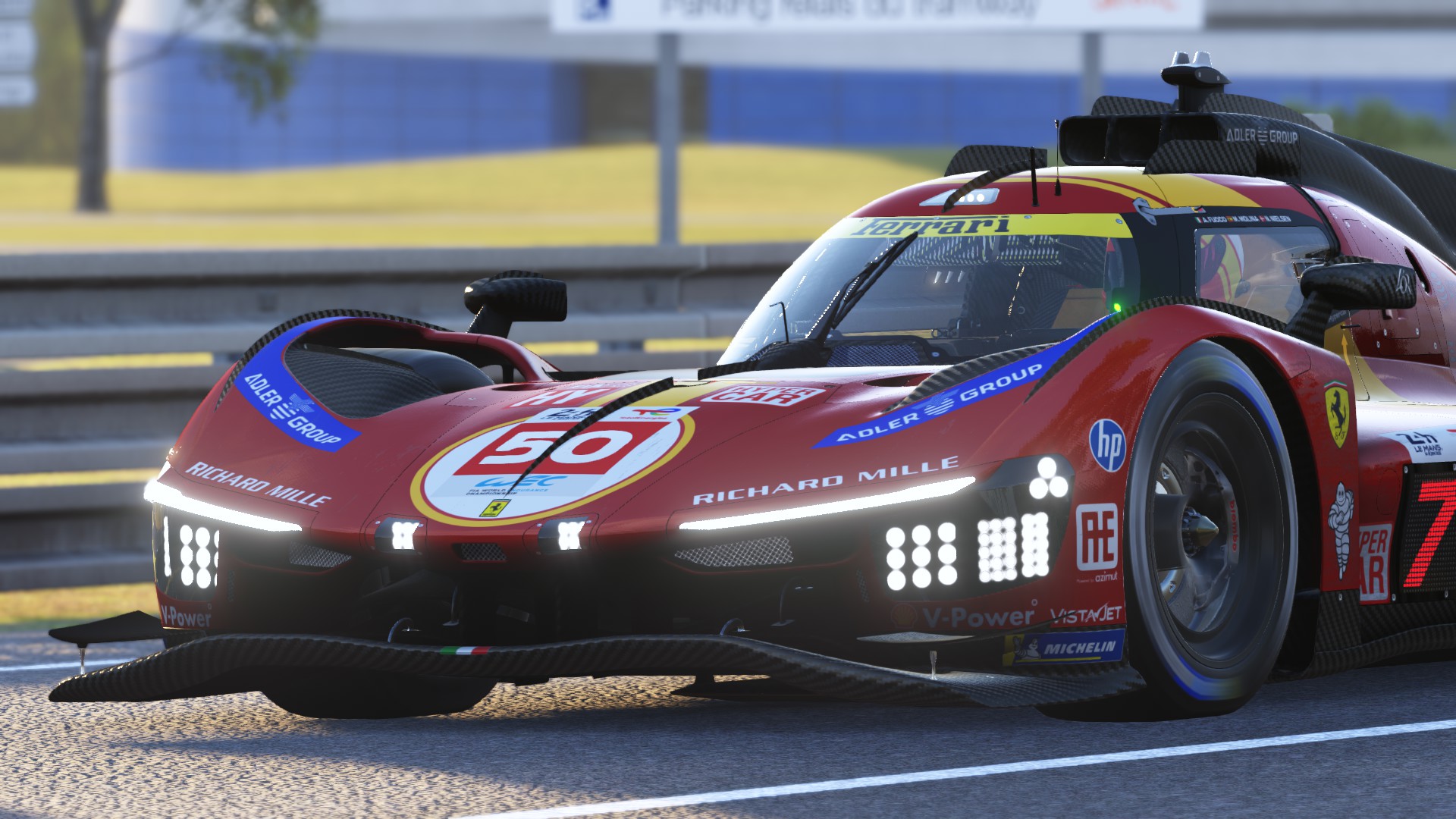
How to Take Photos in Le Mans Ultimate
Whether you’ve just nailed a perfect overtake through the Porsche Curves or you’re looking to create your next stunning desktop wallpaper, you’ve likely realized that Le Mans Ultimate doesn’t have a traditional “Photo Mode” button. If you’re aiming to level up your Instagram feed or capture the sunset hitting the bodywork of your Hypercar, you’ll need to master the art of the Replay Camera. In this guide, we’ll show you exactly how to turn your best racing moments into professional-grade virtual photography.
Plan your shot ahead
Because you’ll be working with a recorded replay, you need to set the stage before you even start the engine. Decide on:
- The Track & Car: Choose your favorite combination (e.g., the Ferrari 499P at Le Mans).
- Conditions: Set the specific time of day and weather to match the “vibe” you want.
- Pro Tip: Sunset or sunrise (“Golden Hour”) provides the most dramatic lighting for car bodywork.
For this guide, we chose Le Circuit de La Sarthe with a Ferrari 499P (our favorite combo 😍) at sunset.
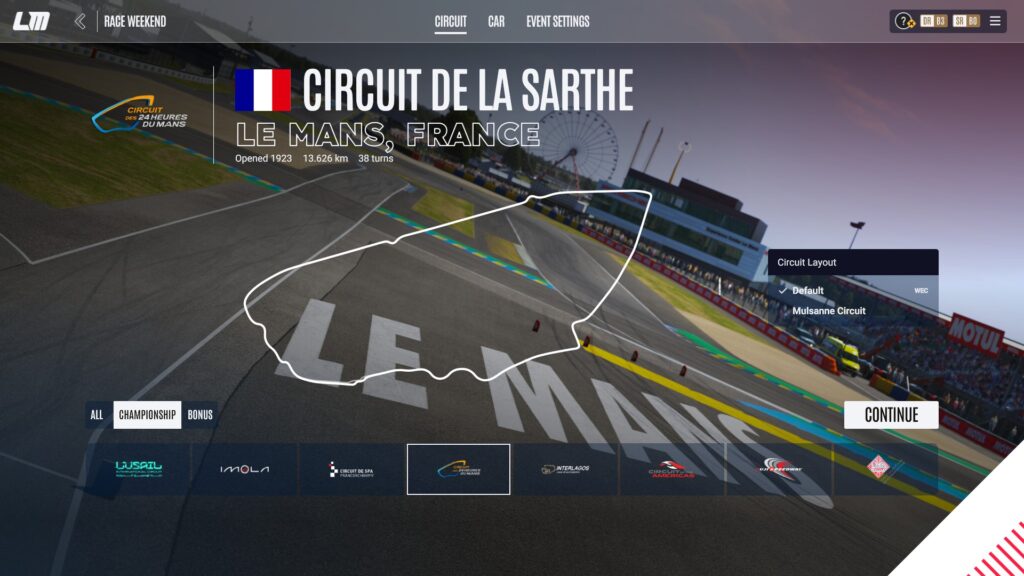
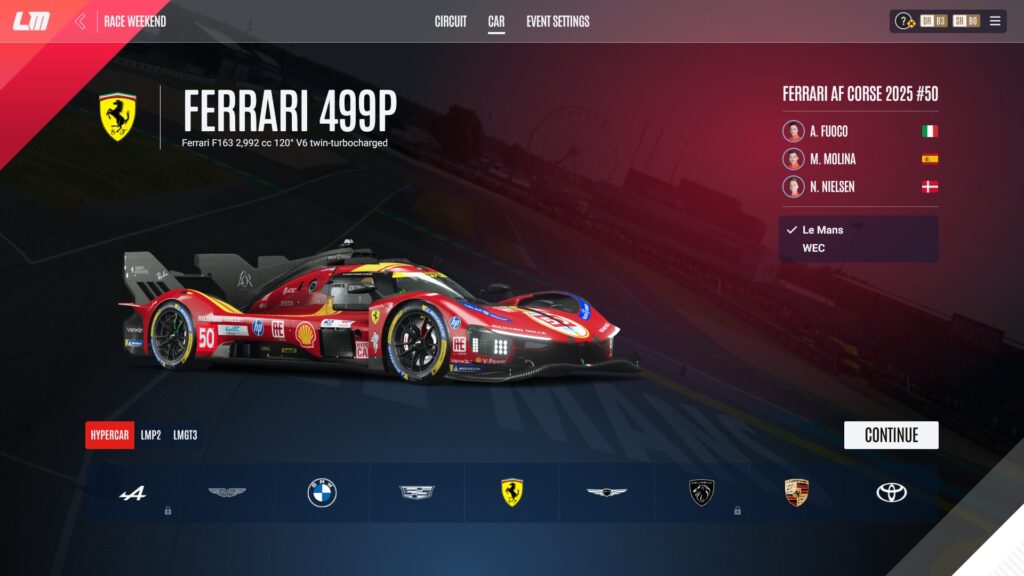
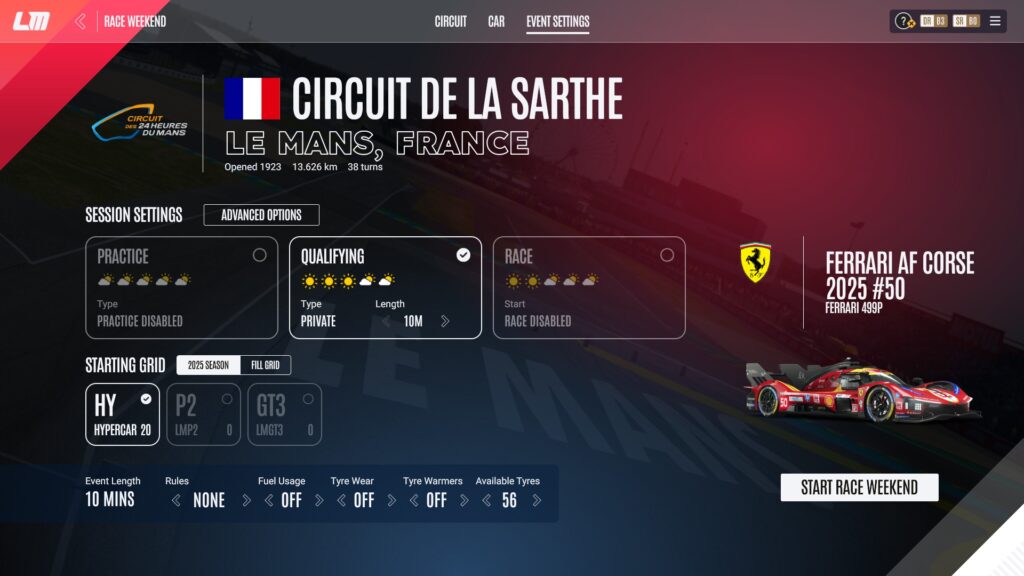
Drive
Join a session and drive for a few laps. Once you have the footage you need, exit the session. Le Mans Ultimate will automatically save your replay, which you can later access from the main menu.
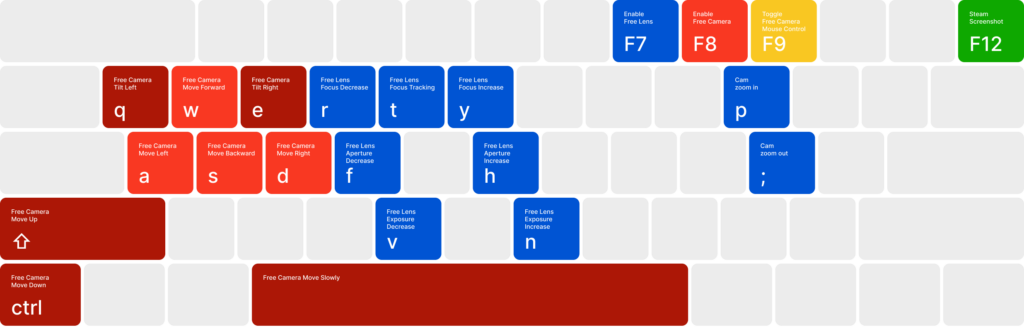
Configure Your Free Cam Controls
By default, the Free Cam controls may not be bound to intuitive keys.
⚠️ Important ⚠️ If you use custom keyboard bindings for driving, take a screenshot of your current settings before changing them so you can revert them later.
Navigate to Settings > Controls > Camera. We recommend the following setup (adjust based on your keyboard layout):
Max Out Your Graphics
Virtual photography is the one time you don’t need 144 FPS. Before opening your replay, go to your Video Settings and crank everything to the maximum. Turn on high-quality shadows, reflections, and post-processing.
Even if your PC struggles to run these settings during a race, it will handle a paused frame perfectly for a screenshot.
Find the Frame
Open your saved replay and scrub through the timeline to the moment you want to capture.
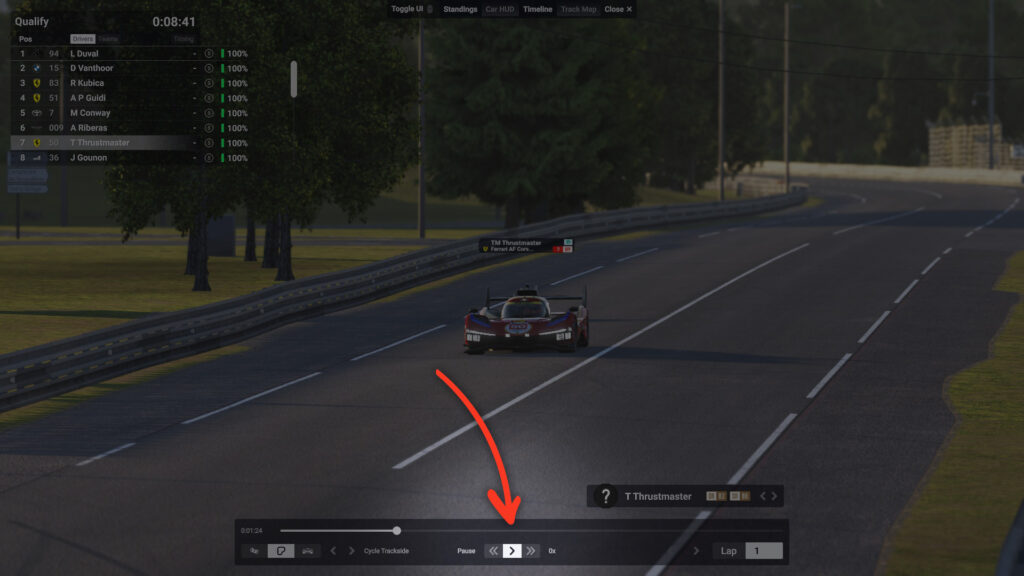
Then:
- Pause the replay.
- Press F8 to enable Free Cam and F9 to use your mouse to look around.
- Position the camera using WASD. Hold Spacebar for precision movement.
- Once you have the angle, press F9 again to lock the mouse so you don’t accidentally ruin the framing.
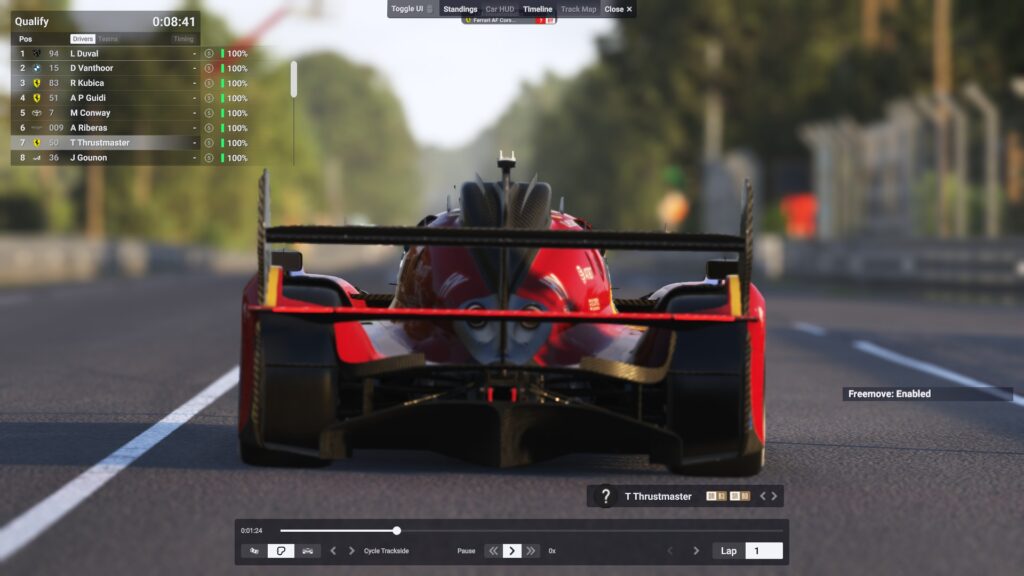
Now you’ll want to add your style: Move the camera far away and Zoom In (P). This flattens the image and looks like a professional broadcast.
However, if you want a action look, move the camera very close to the car with a Wide Angle (;). This creates a sense of speed and immersion.
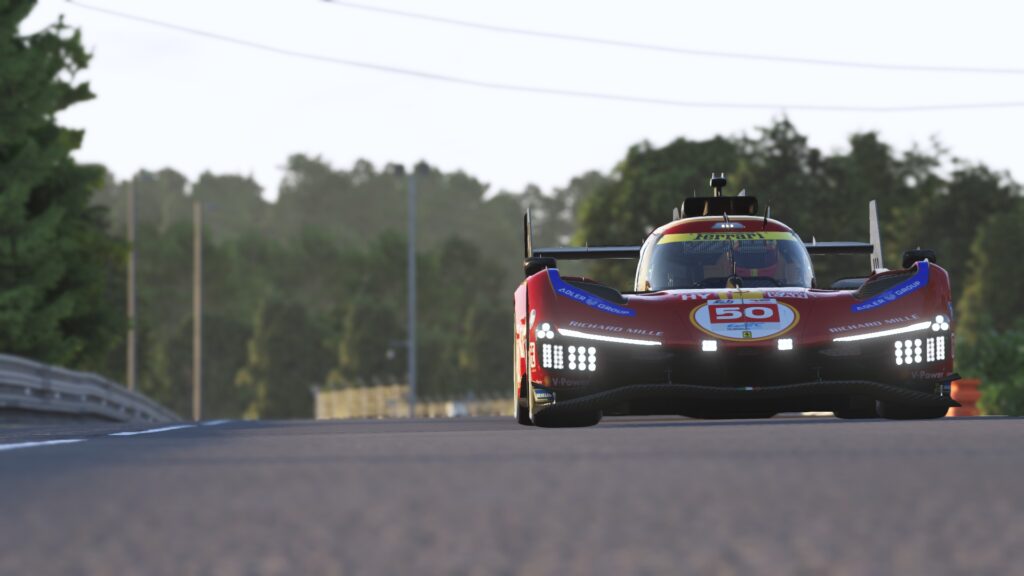
Example of High zoom
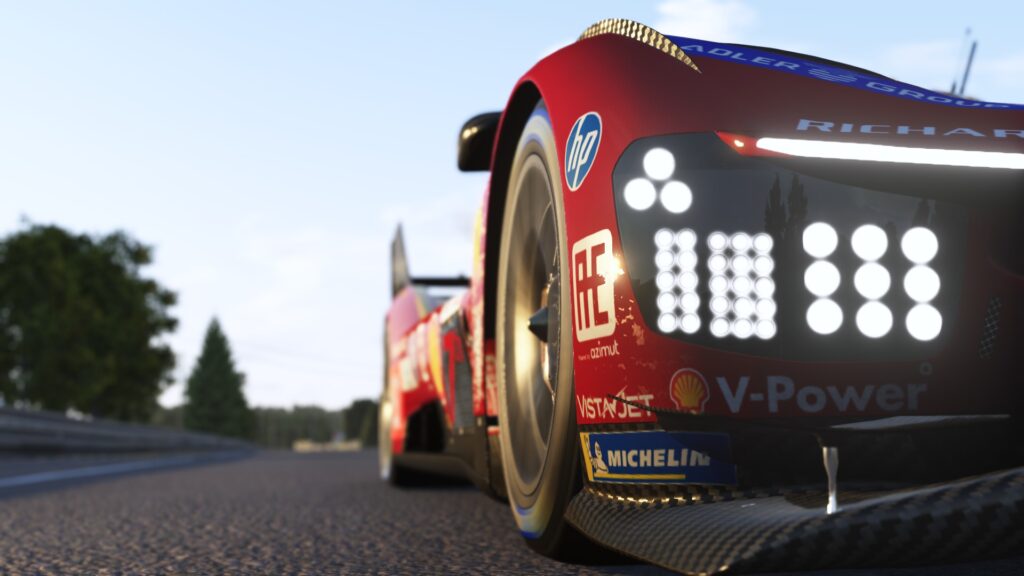
Example of Small zoom
Fine-Tune the Lens
Now, let’s add depth! These are the details that will make your shot look professional.
Aperture (F7 to enable): Use F and H to adjust the aperture. Lowering the aperture creates a “bokeh” effect (background blur).
Focus Distance: Use R and Y to move the focus plane. For example, you may want the car’s headlights or livery to be crisp while the track and background stay softly blurred.
Exposure: Use V and N to adjust brightness.
- Increase exposure for bright, airy daytime shots.
- Decrease exposure for moody, high-contrast night shots.
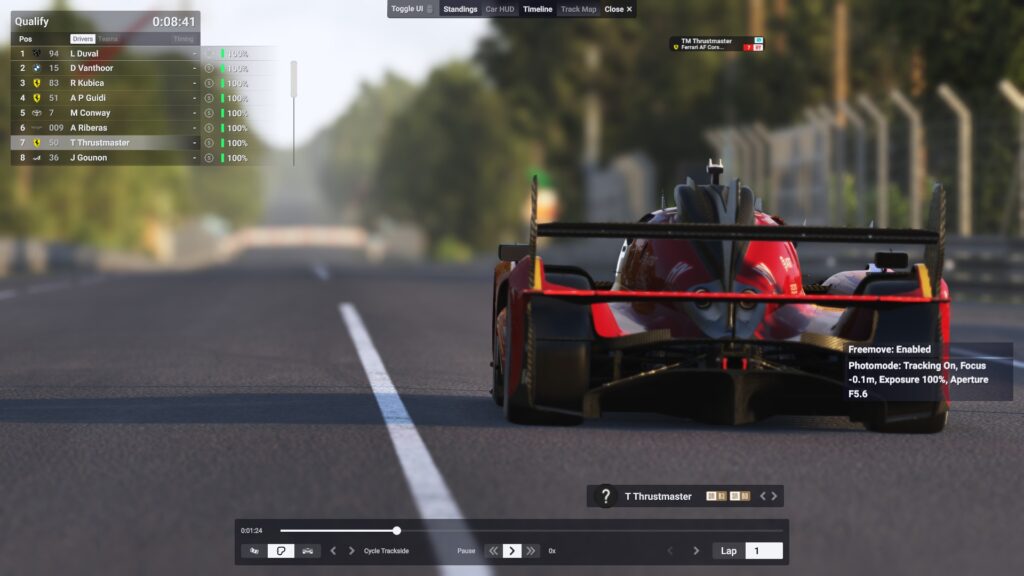
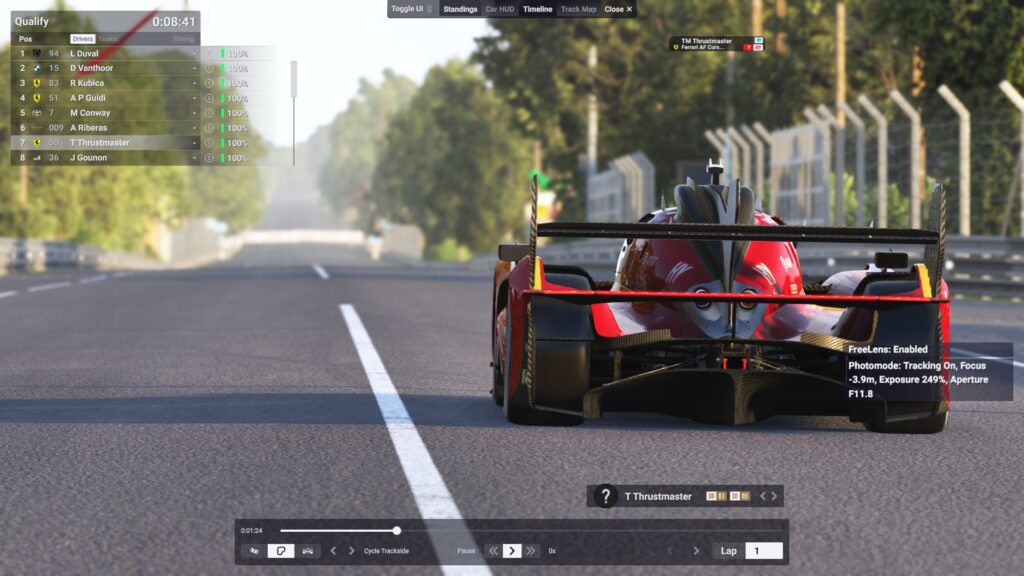
Capture the Moment
Before you take the shot, clean up the screen and Hide the HUD (Mouse Scroll Wheel).
Once ready, take your screenshot by pressing F12 (Steam’s default).
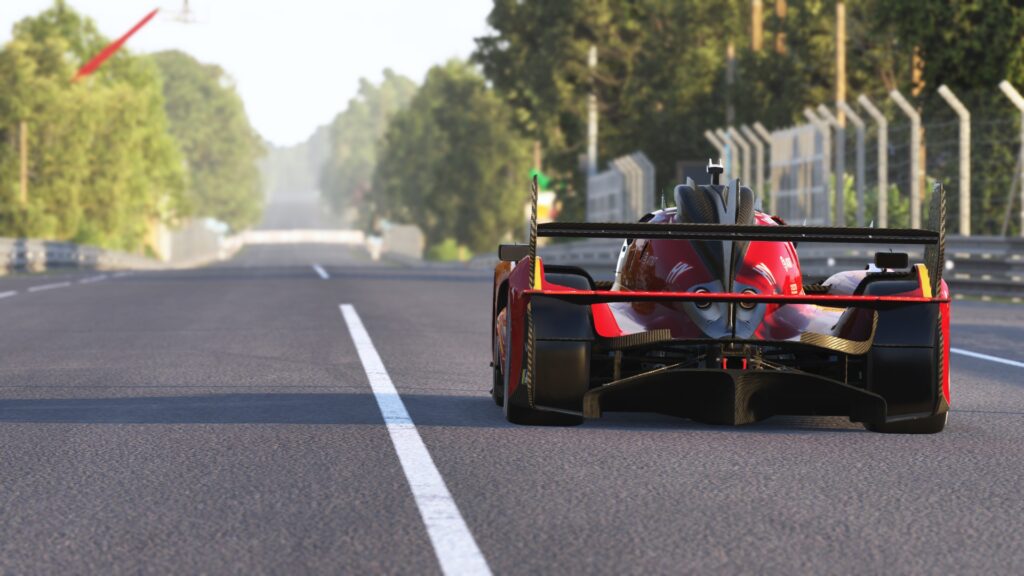
Where to find my photo?
Once you’ve snapped your masterpiece, you’ll want to share it. Here is how to access the files:
- Return to Steam.
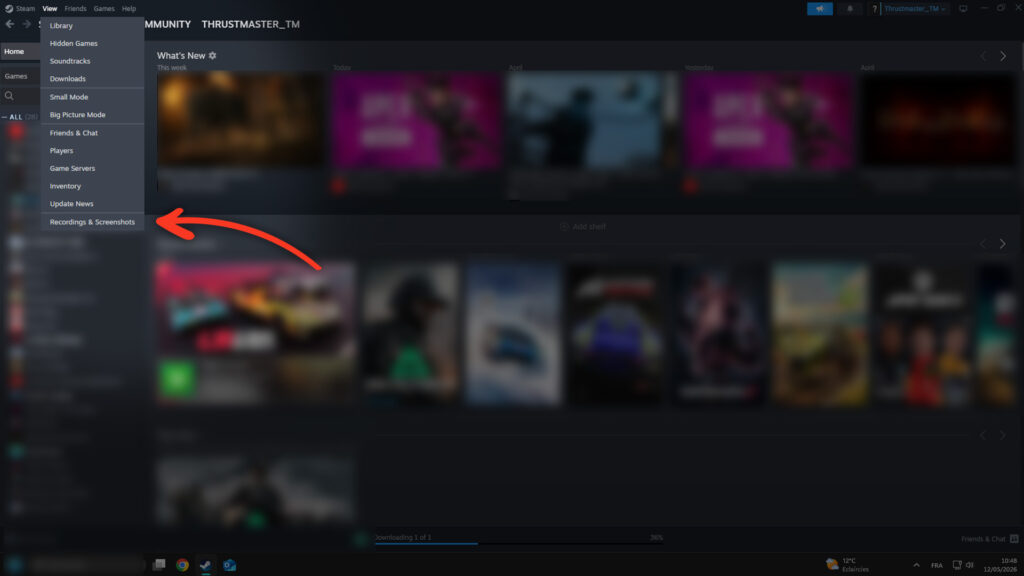
- Select the View menu at the top left and click on Recordings & Screenshots.
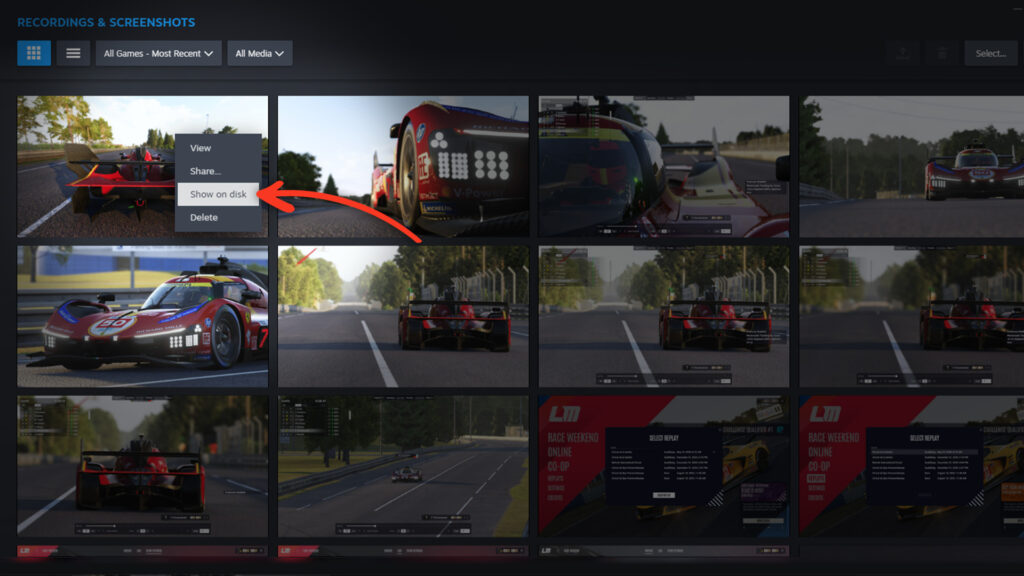
- Right-click on any photo and select Show on disk to open the folder in Windows Explorer.
And… That’s it! Now you’re a real (virtual) photographer! Use your shots as wallpapers or share them online with the community so everyone can enjoy your work. 🏎️📸