
Microsoft Flight Simulator 2024: Installing the Thrustmaster Control Mapping
Have you just purchased a TCA Sky Yoke or another device from the Thrustmaster Flying range ? Discover the new input profile for Microsoft Flight Simulator 2024 !
Your device profile: a step you shouldn’t overlook
An input profile automatically maps the buttons and controls on your Thrustmaster device to the functions available in the simulator.
In Microsoft Flight Simulator 2024, these profiles are available through the Marketplace, which you can access directly from the game’s main menu. To get the most out of your Thrustmaster device, our experts recommend downloading a complete input profile for free, so you can enjoy the best possible flying experience in all your favorite aircraft.
Don’t worry: the process is quick and easy. Follow the steps below to configure your device and get ready for your next flight.
How to install your input profile from the Marketplace
on Xbox Series X|S, PlayStation 5, PS5 Pro and PC
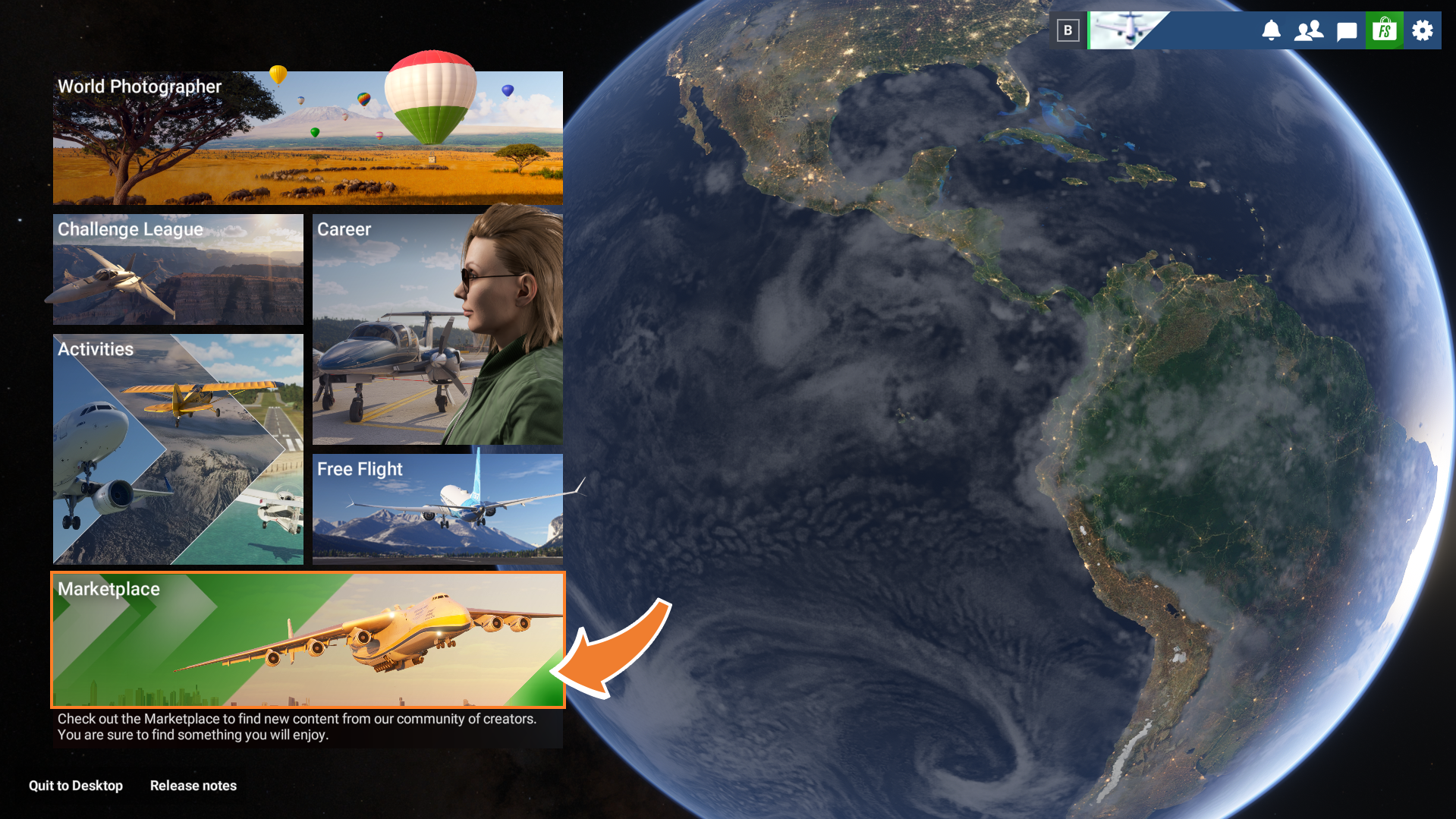
Step 1: Open the Marketplace
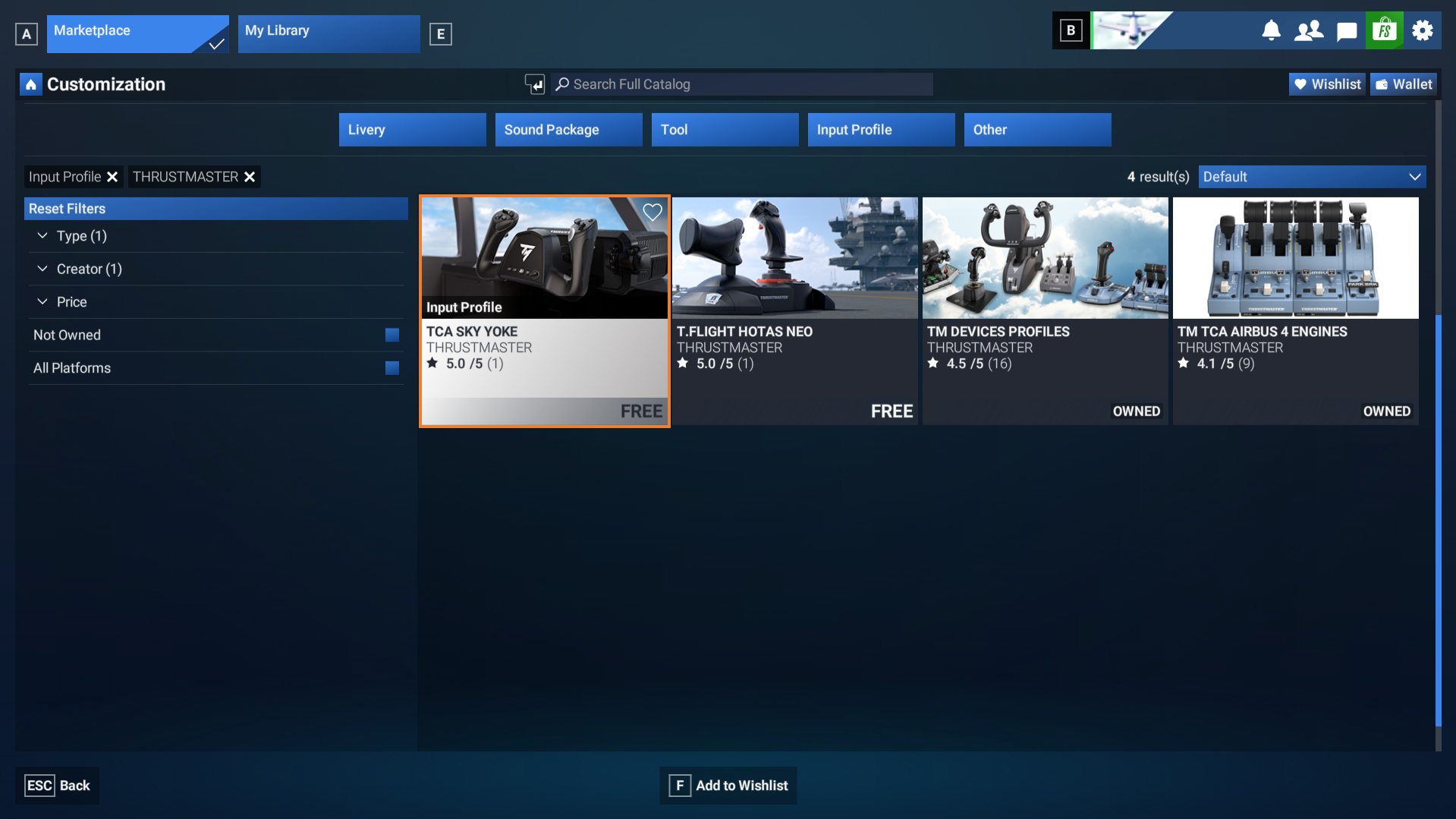
Launch Microsoft Flight Simulator 2024 and open the Marketplace from the game’s home screen.
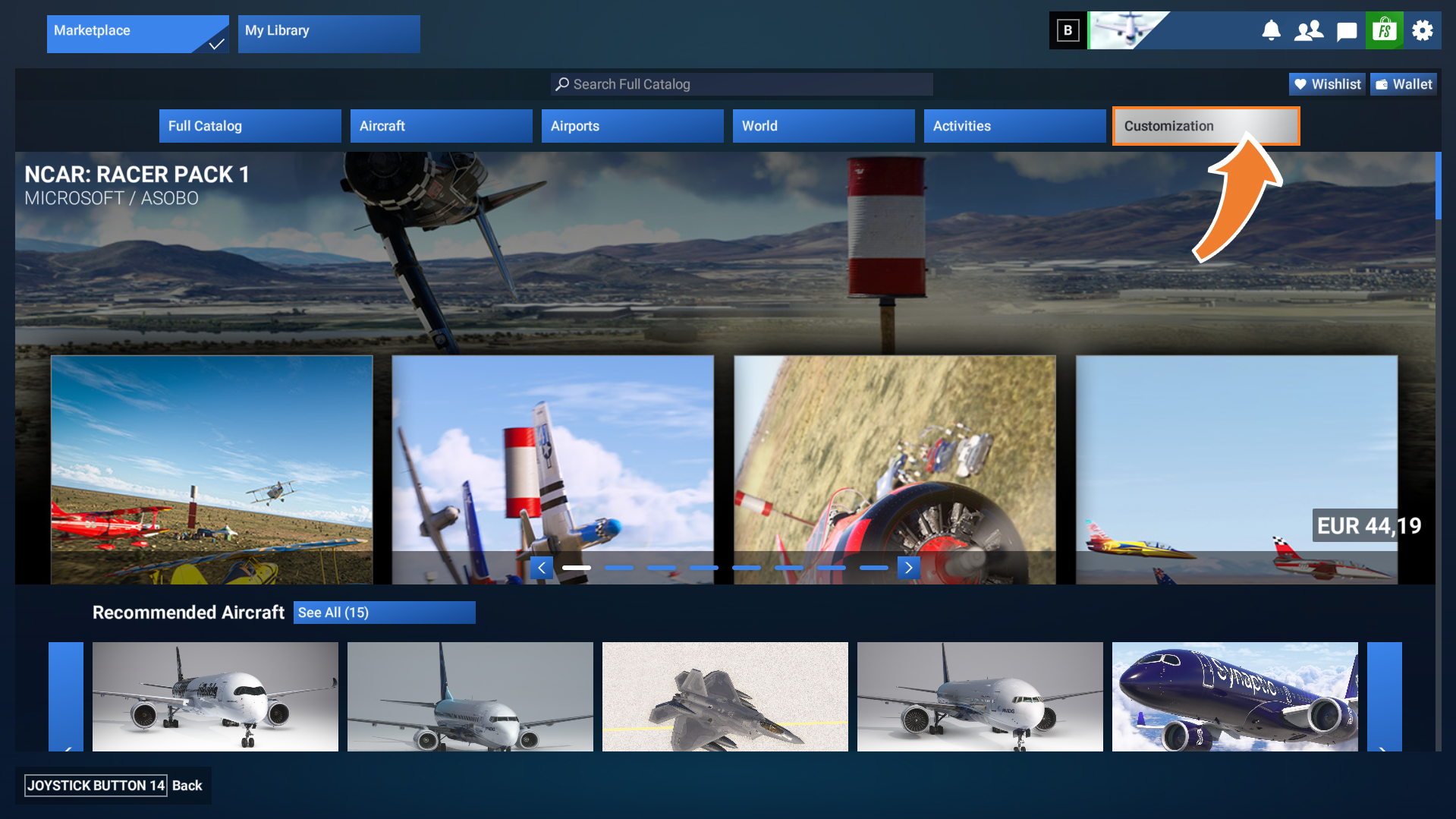
Step 2: Open the “Customization” section
In the Marketplace, go to the Customization tab.
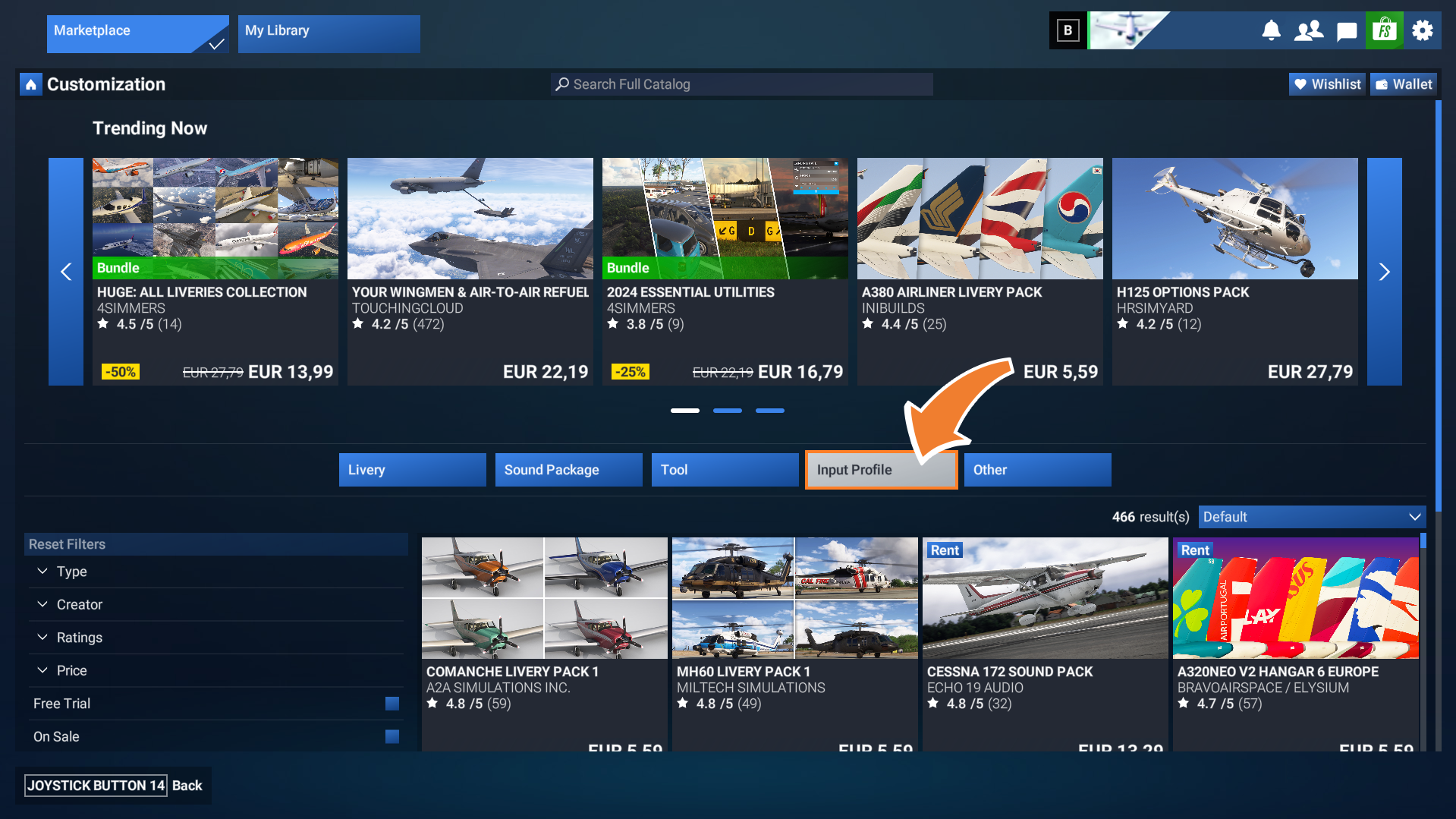
Step 3: Select the “Input profile” tab
Next, open the Input profile tab to access the available control profiles.
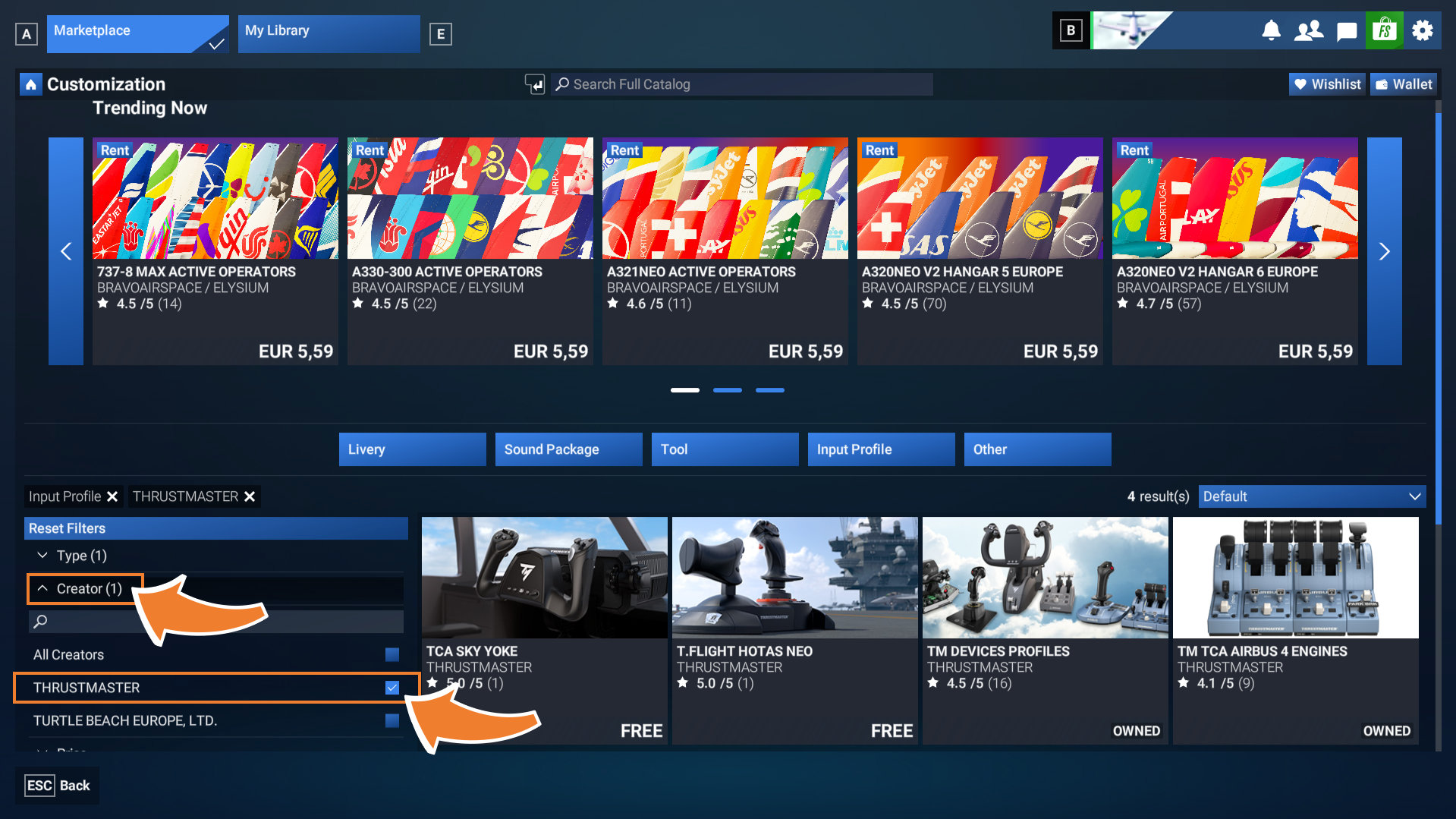
Step 4: Select “Thrustmaster” as the creator
Under the Creator tab, select THRUSTMASTER to display the available profiles for Thrustmaster devices.
Step 5: Select the profile for your device
Find the input profile that matches your specific Thrustmaster device, such as your TCA Sky Yoke, and select it.
Important: Make sure you choose the profile that matches your exact device model.
Step 6: Get the input profile
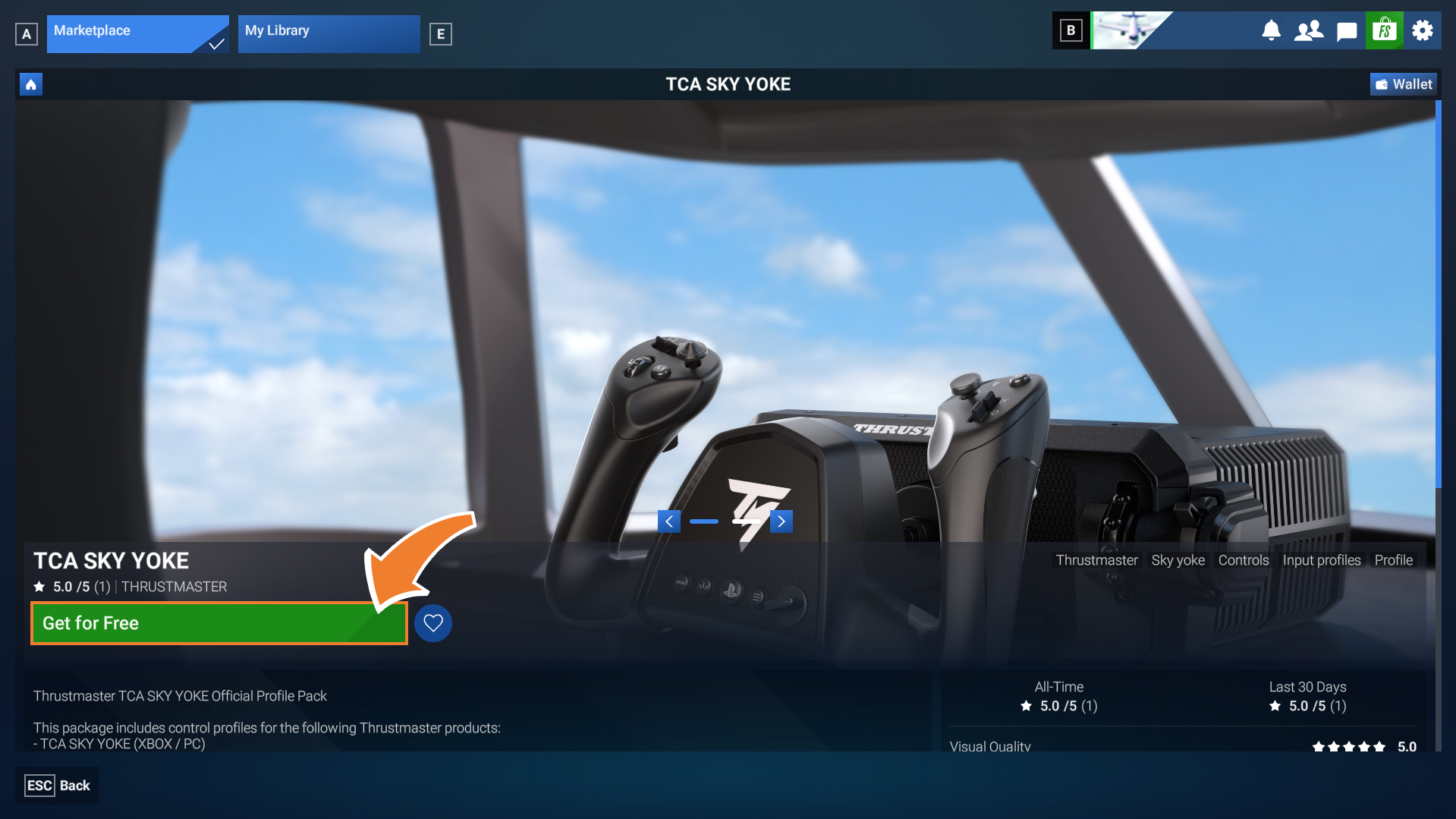
On the selected profile’s page, click Get for free to download it.
Step 7: Check that the profile is activated
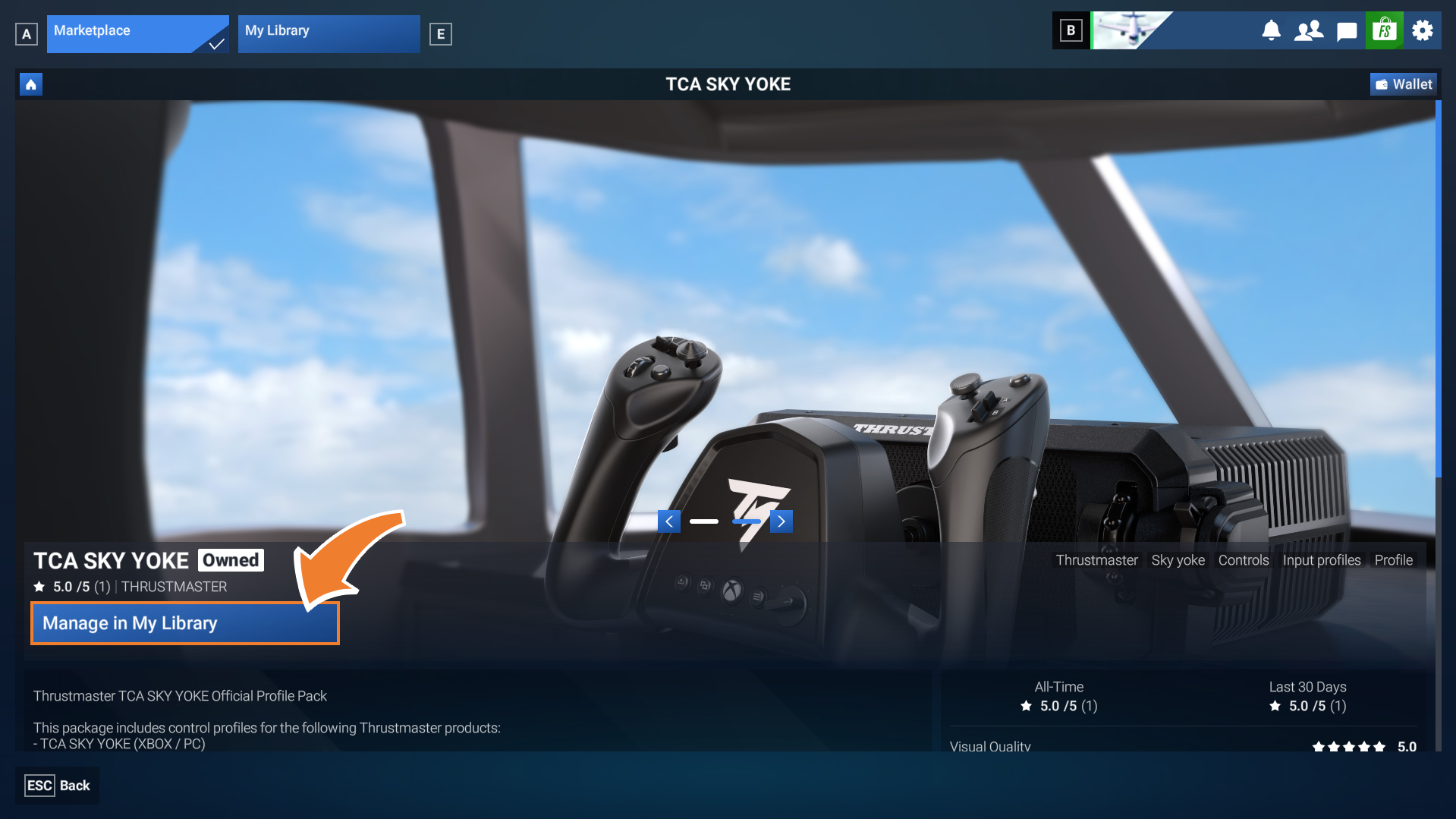
Once you’ve downloaded the profile, select Manage in my library to check that it has been activated.
Step 8: Check the profile status
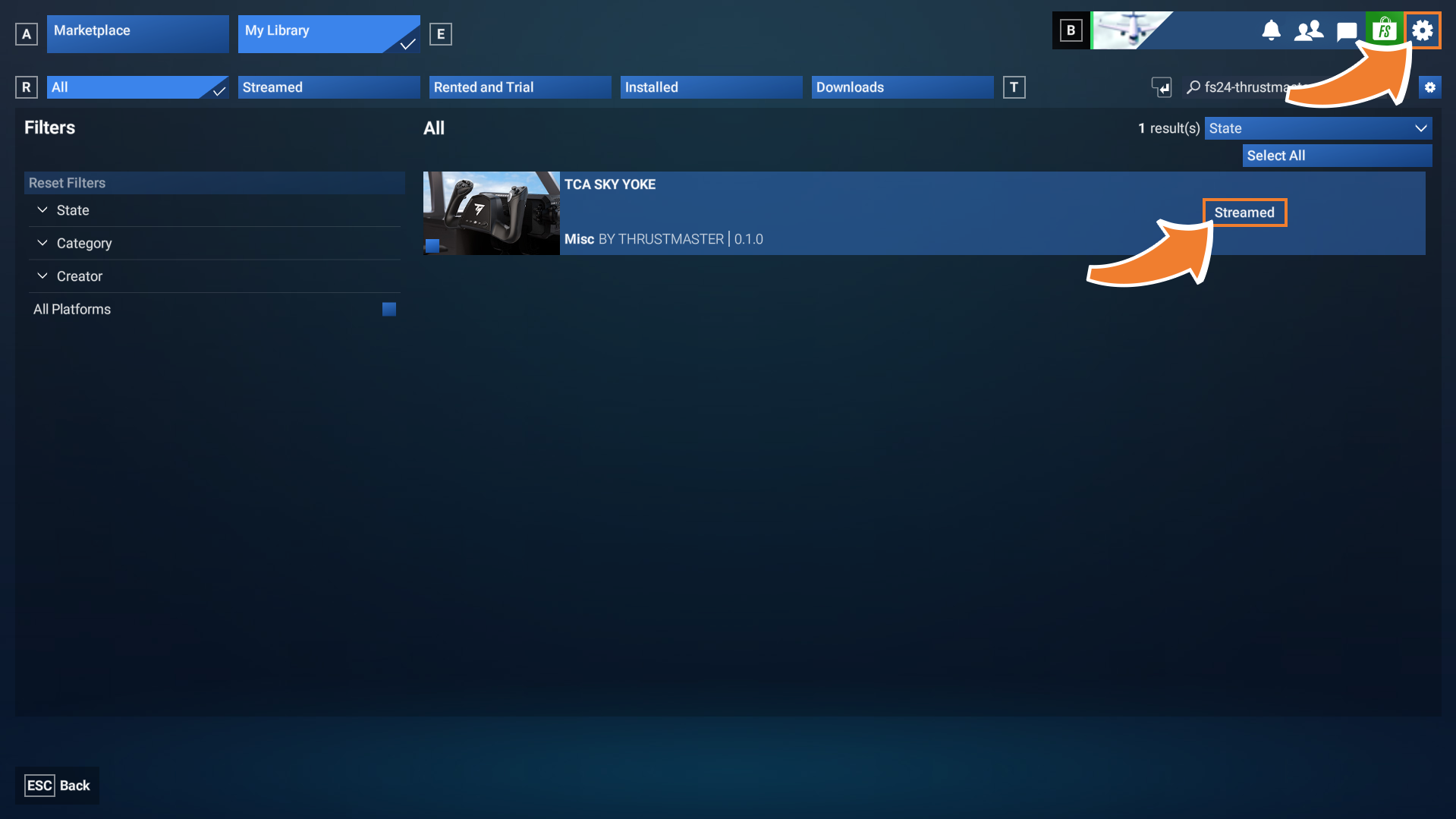
If the profile displays the Streamed or Installed status, it means the profile is active. You can now access the game settings.
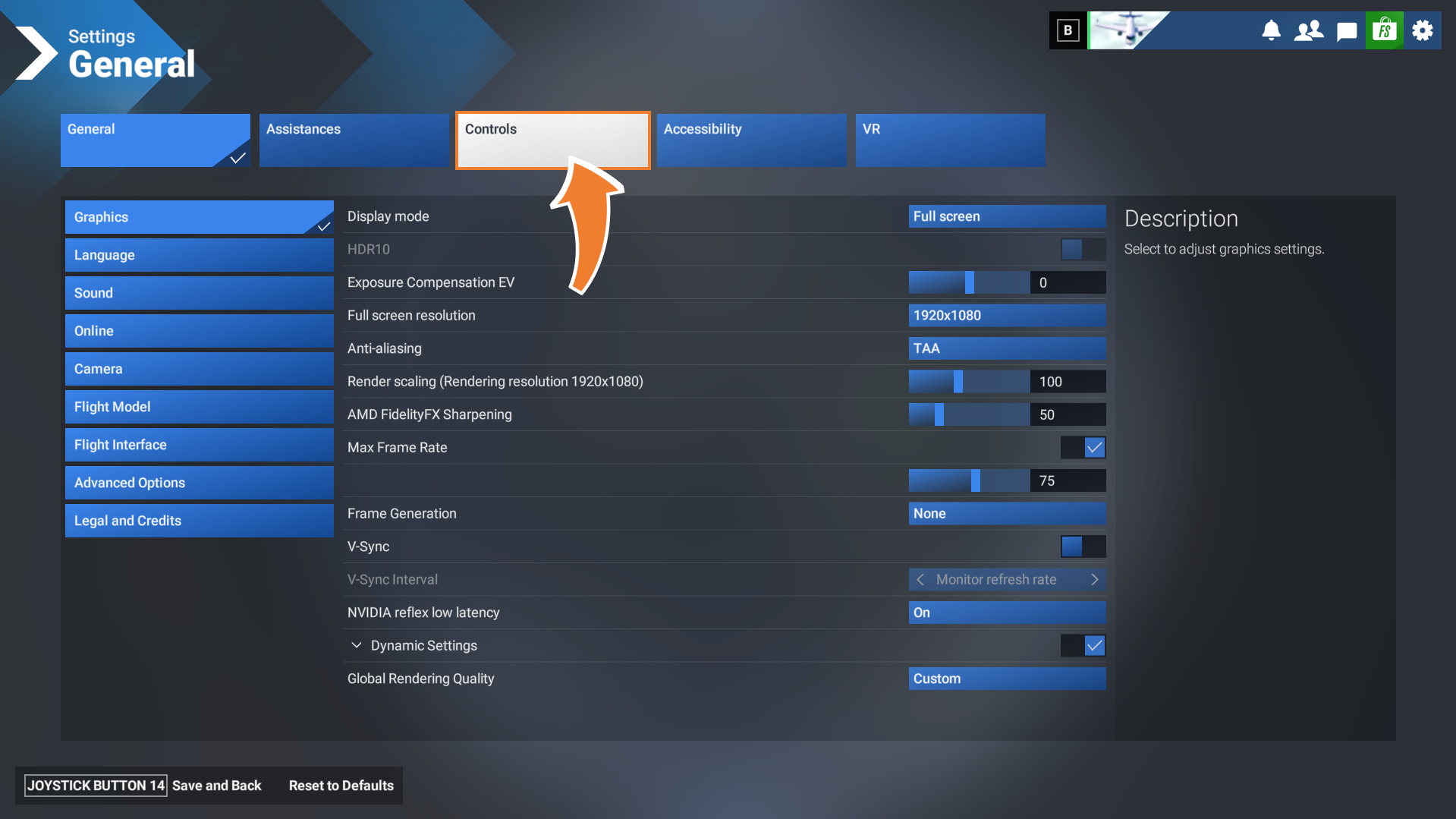
Step 9: Open the Controls menu
In the game settings, navigate to the Controls section.
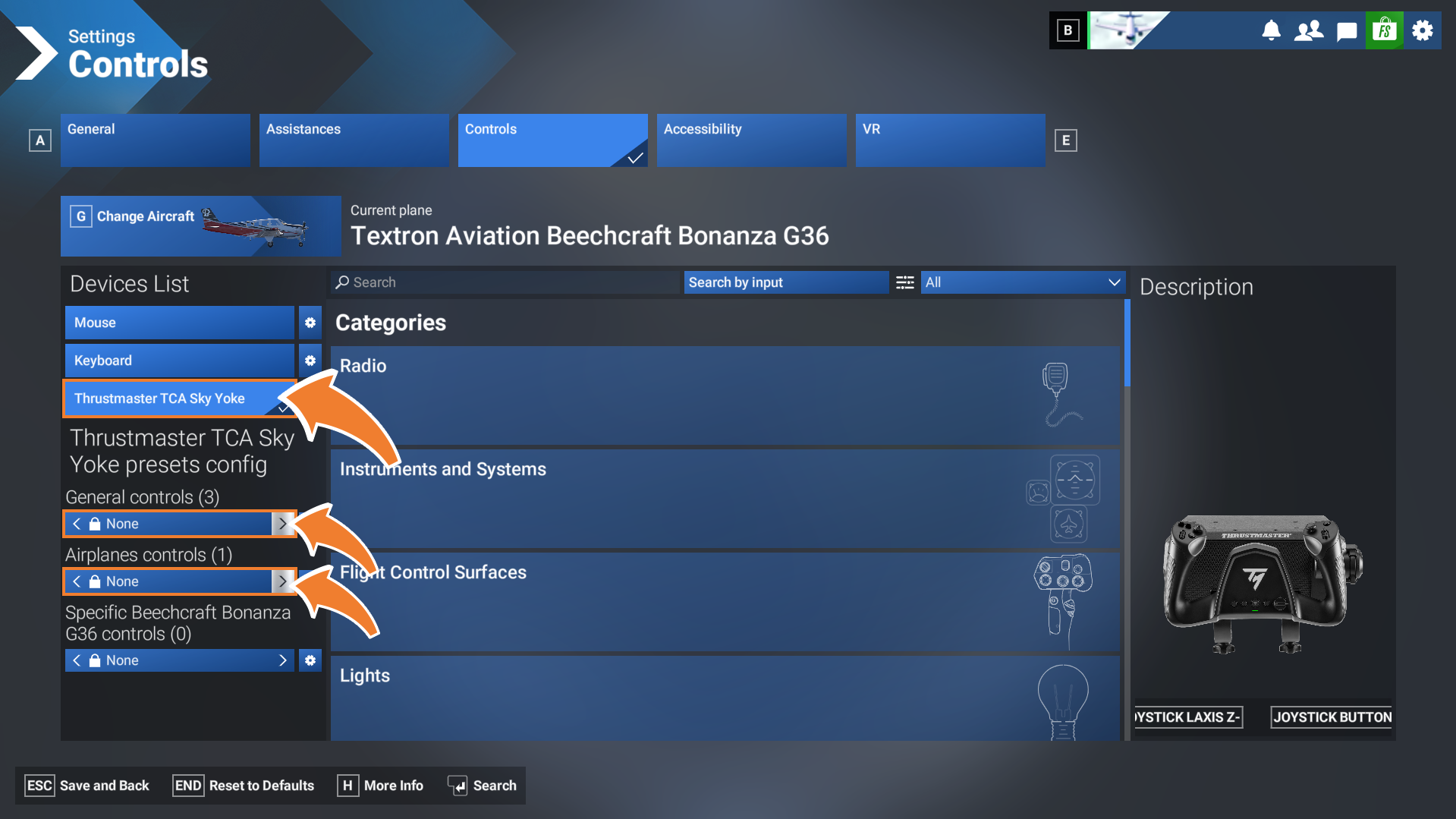
Step 10: Select your Thrustmaster device
If several devices are connected to your computer, such as a gamepad, keyboard, or mouse, make sure you select your Thrustmaster device.
Then, scroll through the available control settings in the General controls and Airplane controls sections.
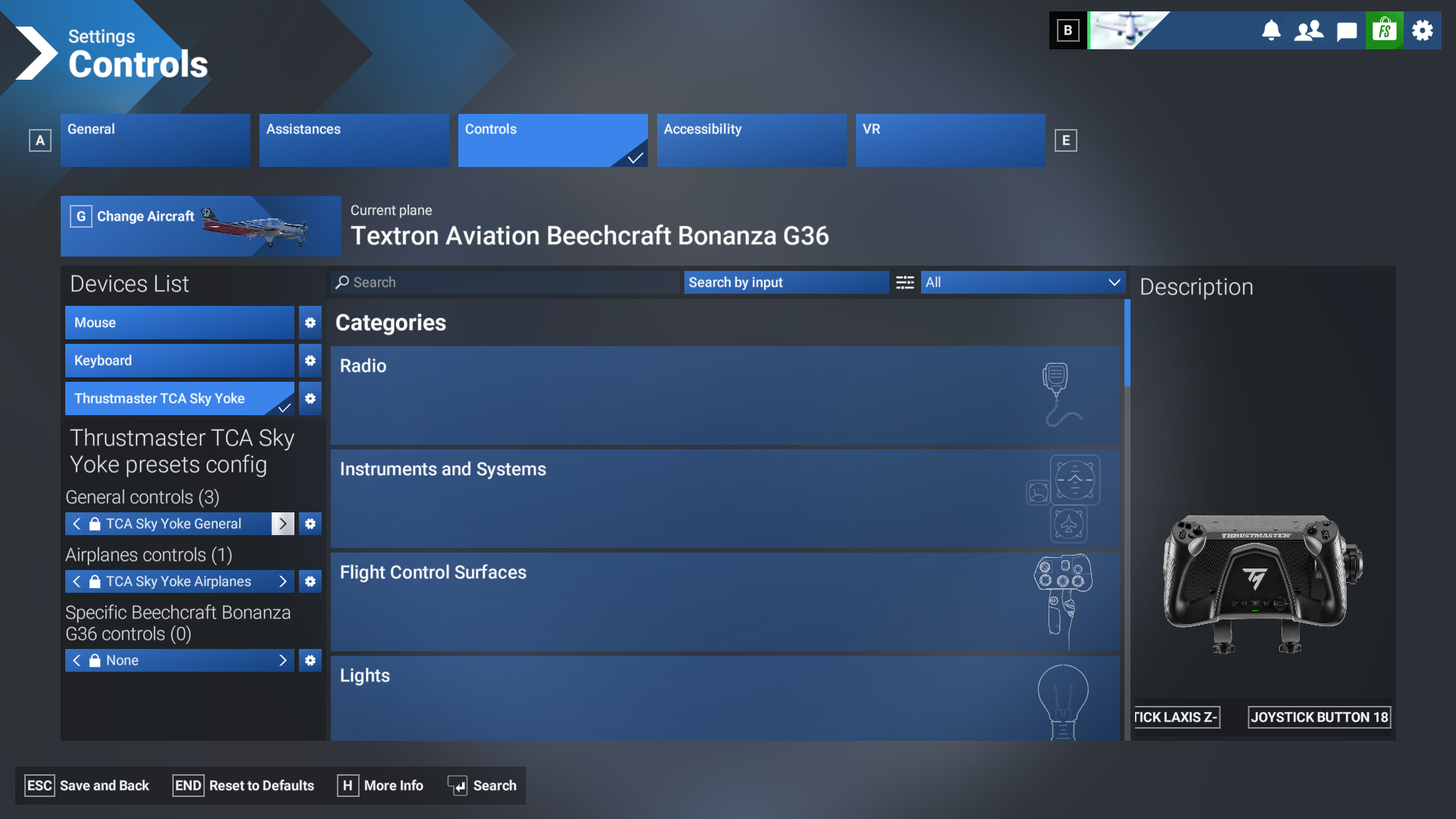
Step 11: Make sure your device is ready to use
When your Thrustmaster product appears in both sections, your device is ready to use.
You’re cleared for takeoff! Make the most of your flying experience with Thrustmaster and Microsoft Flight Simulator 2024.
Ready for takeoff?
You’ve installed the input profile for your device and confirmed that it’s active. You can now enjoy your Thrustmaster equipment in Microsoft Flight Simulator 2024.
Remember: If you own a TCA Sky Yoke or another compatible device from the Thrustmaster Flying range, make sure you download the corresponding input profile from the in-game Marketplace before starting your flight session.