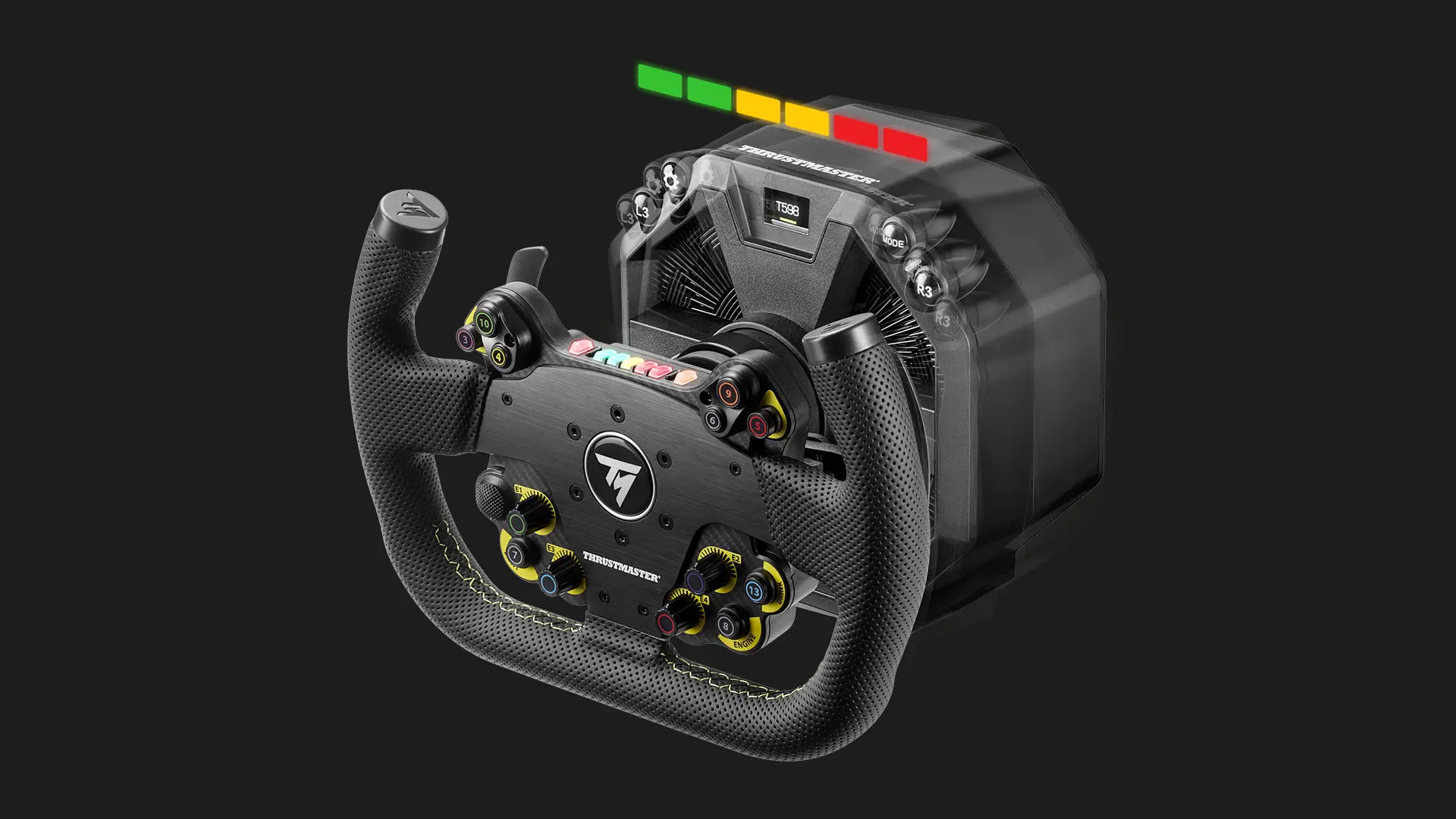
T598 Firmware Update: Engine Roar, Telemetry & UI Enhancements
The latest firmware releases for the T598 for PlayStation (v3.08) and the T598 for Xbox (v1.60) introduce major improvements designed to refine the driving experience, expand device compatibility, and bring deeper immersion to sim racers across consoles and PC.
New feature for T598 (Playstation): Engine Roar (Harmony Effect)
A major addition in this update is the Engine Roar feature, available directly from the FFB (Force Feedback) menu.
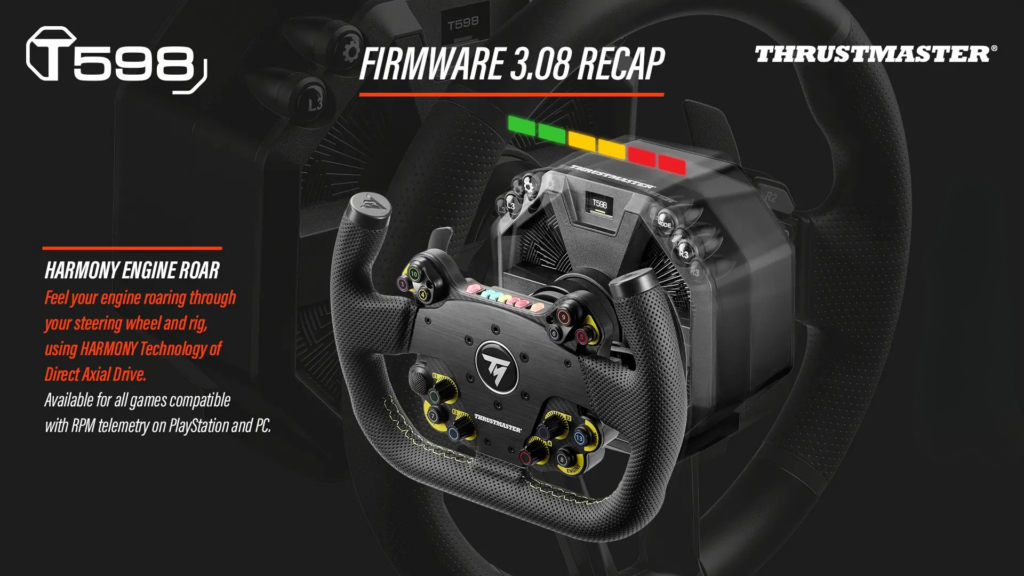
This immersive effect enhances the sensation of engine RPMs and the rev limiter by transmitting vibration cues through the wheel base. Users can now tailor the feedback intensity using four selectable levels: OFF, LOW, MID, HIGH
| Mode | Speed Threshold (km/h) | Engine Roar Behavior | Rendering | Recommended Use |
| Low | < 200 | Low Amplitude | Subtle engine presence. | Rally or games with detailed road texture |
| > 200 | Disabled | Priority to in-game road effects. | ||
| Mid | < 300 | Medium Amplitude | Immersive engine rendering. | GT3 |
| > 300 | Disabled | Priority to road details at high speed. | ||
| High | < 400 | High Amplitude | Maximum engine performance over a wide frequency range. | Single-seater cars, arcade games |
| > 400 | Disabled | Priority to road details at high speed. |
This customization enables drivers to fine‑tune how deeply they want to feel engine resonance for a more engaging driving experience. Using HARMONY Technology from Direct Axial Drive, you might even feel vibration through your rig, enhancing overall immersion. The effect is available for all games compatible with RPM telemetry, ensuring consistent feedback.
Note: Engine Roar is not available on Xbox but remains fully compatible with the T598 (Xbox) when used on PC.
Race Dash UI enhancements
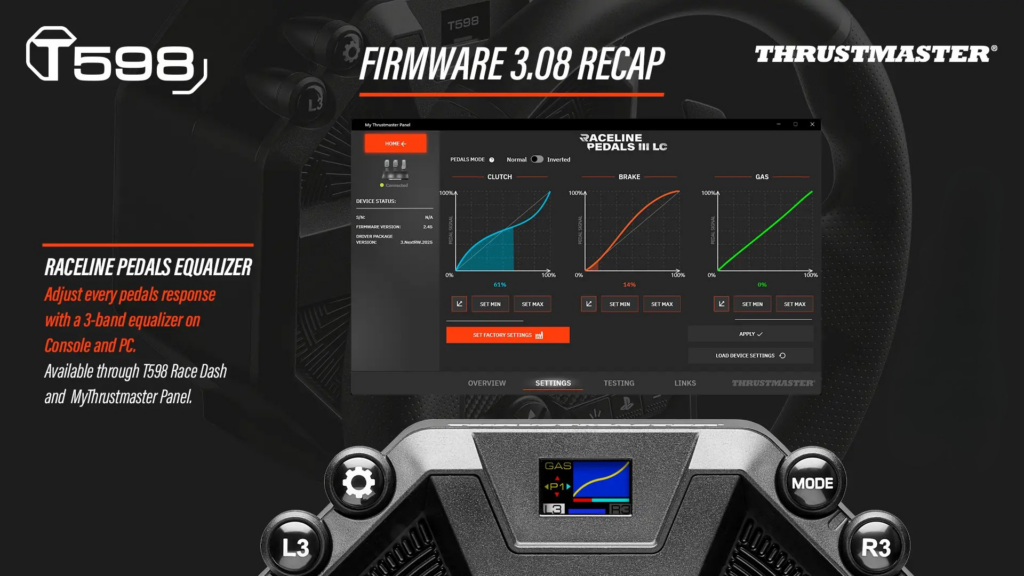
The Race Dash interface now includes Raceline Pedals Equalizer, allowing for more precise pedal tuning. This gives drivers better control over pedal sensitivity and response behavior, resulting in improved consistency and performance during demanding race sessions.
New devices supported
With this update, the Raceline LC and Formula Wheel Add-On Ferrari SF-25 Edition are now fully supported. These additions broaden the ecosystem of compatible devices and ensure seamless integration for users equipped with these recently introduced peripherals.
T598 (Xbox) : New telemetry activation for Xbox
The T598 (Xbox) now supports enhanced in‑game telemetry on Xbox, enabling dashboard screens and LED outputs on compatible wheels and hubs.
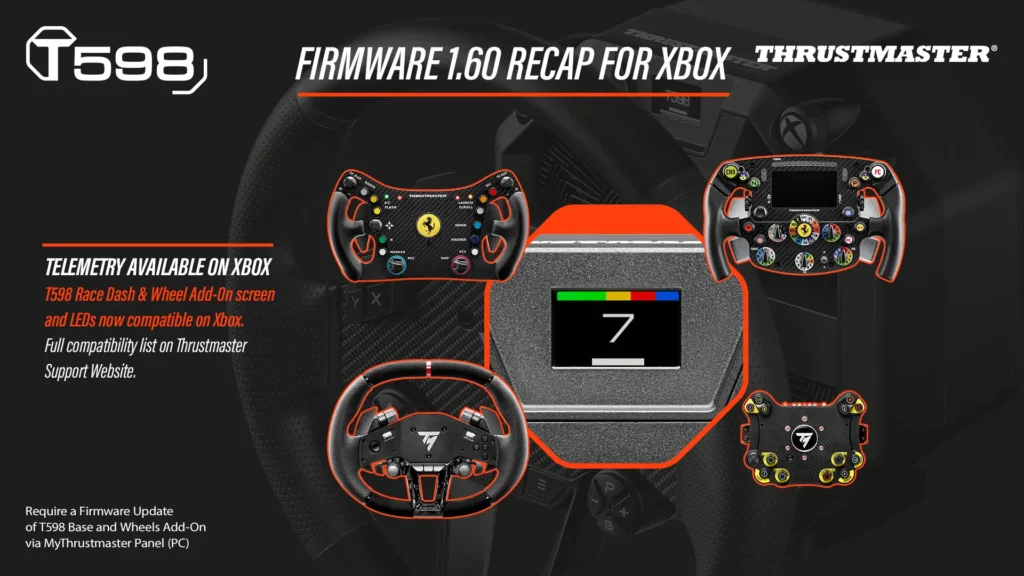
Compatible displays & LEDs on Xbox
(Firmware updates required for the corresponding wheel)
- T598 (Xbox) dashboard screen
- Formula Wheel Add-On Ferrari SF-25 Edition: screen & LEDs (requires wheel FW v9.15)
- Ferrari 488 GT3 wheel Add-On : LEDs (requires wheel FW v2.06)
- EVO Racing Hub : LEDs (requires FW v2.06)
- Hypercar wheel Add-On : LEDs (requires FW v2.06)
Note: Native telemetry on Xbox is not compatible with the Formula Wheel Add-On Ferrari SF1000 Edition.
Important guidelines for telemetry reliability on Xbox
To ensure proper telemetry behavior with the T598 (Xbox):
Before launching a game
- Always mount the wheel before powering on the T598 (Xbox).
- Once the wheel is recognized, launch the game from the wheel, and do not unplug/swap the rim afterward.
- If switching games, it may be necessary to restart the T598 (Xbox) base.
Do NOT do the following
- Do not use QUICK RESUME (causes telemetry loss).
- Do not access the Xbox main menu without first closing the game completely.
- Do not open the Xbox virtual keyboard during gameplay.
- Avoid triggering the console screensaver, which opens the general menu and breaks telemetry.
Telemetry lost? Follow this recovery procedure
- Close the game completely
- Restart the T598 (Xbox) base
- Launch the game again
Bug fixes & general improvements
The update also includes minor bug fixes and a series of general performance improvements, ensuring smoother operation and increased stability across the system.
To access all the new features and improvements included in this update, a firmware update is required through the My Thrustmaster Panel (PC) software. Simply connect your device to your computer, open the My Thrustmaster Panel software, and follow the on‑screen instructions to ensure your T598 is running the latest version. Keeping your firmware up to date guarantees optimal performance, stability, and compatibility with the newest features.