
Setup T598 : le guide complet pour maîtriser votre volant
Welcome to this comprehensive guide for the T598 racing wheel base, designed to help you maximize its potential. No matter your skill level, this detailed tutorial will walk you through the process step by step to set up your base, wheel rim and pedals, and optimize the telemetry settings for an immersive, performance-oriented sim racing experience.
This guide covers the essential steps for adjusting the compatibility modes, customizing Force Feedback, setting the rotation angle, configuring the pedals, and much more.
Get ready to dominate the track with a perfectly calibrated setup!
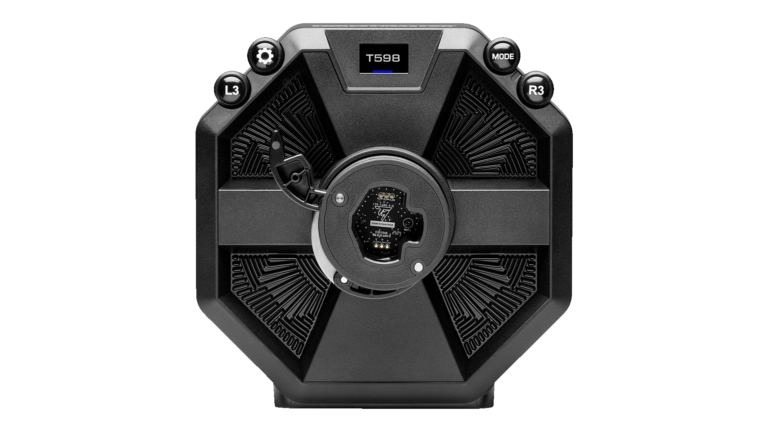
Step 1: Select the appropriate compatibility mode
The crucial first step in setting up your T598 base is to choose the appropriate compatibility mode based on your platform and the game you’re playing. T598 features three distinct modes:
- PC mode (green): for playing on a computer.
- Blue PlayStation mode (mode 1):
- For playing on PS4.
- For playing PS4 games on PS5.
- For playing most PS5 games.
- Red PlayStation mode (mode 2):
- For playing certain native PS5 games (Gran Turismo 7 and upcoming games).
To select the mode, press the mode button on the racing wheel base, then use the up and down buttons on the wheel rim to navigate between modes. Choose the one that matches your setup to ensure optimal compatibility.
We recommend consulting the official Thrustmaster compatibility list to determine which mode to use for each game, helping to avoid any integration issues.
Step 2: Access the settings menu
Once you’ve selected the compatibility mode, it’s time to adjust your setup’s settings. To do this, press the gear button on the racing wheel base to access the list of submenus.
You will then see two main options:
- Settings
- Telemetry
To change the settings, press the L3 button to access the settings menu. This menu is divided into three sections, dedicated to each component:
- Racing wheel base
- Wheel rim
- Pedal set
Use the up and down buttons on the wheel rim’s D-pad to navigate through the settings, and the left/right buttons to adjust the values. Any changes are applied immediately.
Customize the racing wheel base’s settings
In the base’s menu, you can adjust many essential settings for a realistic driving experience:
1. Screen brightness
Adjust the brightness of the built-in screen using the dedicated icon. Three levels are available:
- 0: default brightness
- -1: dimmer screen
- +1: brighter screen
2. Firmware version
Check the base’s firmware version and make sure to update it regularly to benefit from the latest improvements and fixes.
3. Force Feedback (FFB) profiles
T598 offers four preset Force Feedback profiles, ranging from the gentlest to the most aggressive:
- FFB D: default profile
- FFB 1/2/3: customizable profiles with increasing intensity
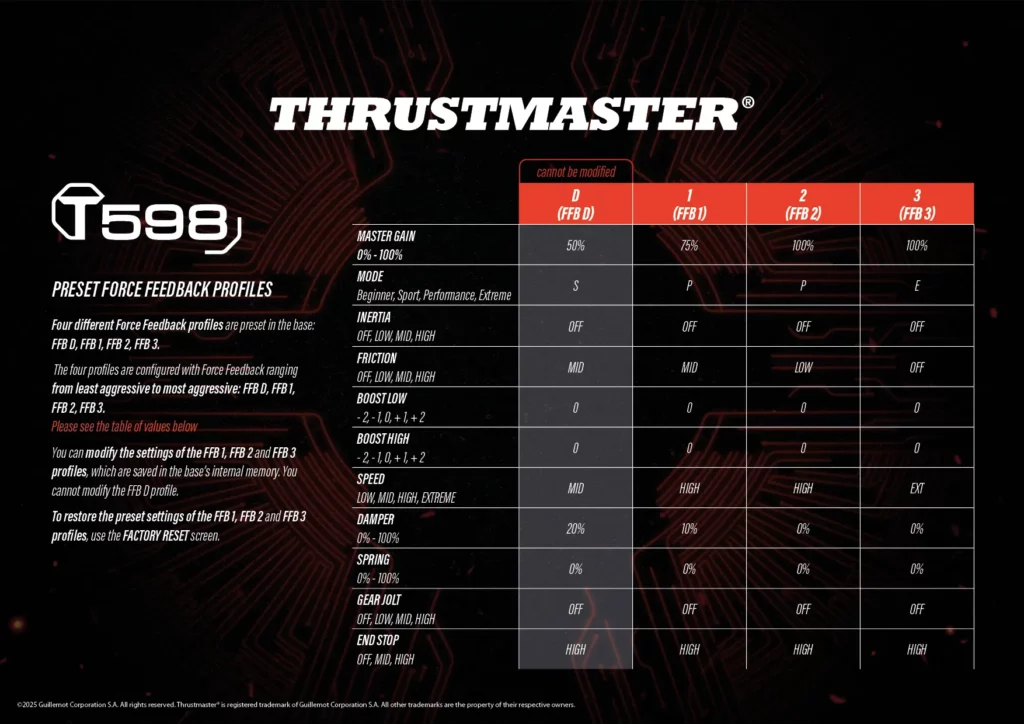
You can customize each profile (1, 2, 3) by adjusting specific settings, and the changes are saved in the base’s internal memory.
4. Overall Force Feedback strength
Adjust the overall Force Feedback strength from 0% to 100%, in 5% increments. This directly affects the overall Force Feedback strength and the sensations felt in your hands.
5. Driving mode
Choose from four driving modes that adjust the responsiveness and level of detail of the Force Feedback:
- B (Beginner): ideal for beginners
- S (Sport): intermediate mode
- P (Performance): advanced mode
- E (Extreme): the most aggressive mode, for experienced drivers
Try out each mode to find the one that best suits your driving style and the type of car you’re using.
6. Inertia
This setting adjusts the wheel rim’s resistance based on the car’s speed. The higher the speed, the heavier the wheel rim becomes, which reduces wobble and improves stability on straights. You can choose:
- Off: disables inertia
- Low/Mid/High: increasing levels of inertia
Please note that this feature is only active in games compatible with T598’s telemetry.
7. Friction
Adjust the friction simulated by the motor when the wheel rim is turning slowly or is stationary. Friction helps limit oscillations: Off/Low/Mid/High.
8. Boost Low and Boost High
These settings adjust the Force Feedback effects:
- Low to medium (Boost Low), such as track curbs or road texture.
- Medium to high (Boost High), such as collisions with vehicles or a wall.
Each setting ranges from -2 to +2, with higher values intensifying the sensations.
9. Wheel rim rotation speed (Speed)
Controls the maximum rotation speed when the wheel rim is released. Options range from Slow to Extreme. Caution: too high a speed can make the wheel rim difficult to control.
10. Wheel rim damper (Damper wheel)
Simulates the sensation of weight or friction when moving the wheel rim. A low value increases responsiveness, while a high value provides more resistance.
11. Game damper (Damper game)
Amplifies the sensation of weight or friction in the wheel rim based on the game’s Force Feedback settings. This should be used in conjunction with the wheel rim damper according to your own personal preferences.
12. Spring
Determines the speed at which the wheel rim returns to the center in the absence of Force Feedback. This is especially useful in games that do not support Force Feedback. The default value is 0%.
13. Gear Jolt
Simulates the sensation of shifting gears through jolts in the wheel rim. Four levels are available: off, low, mid and high. This feature is only active in games compatible with Thrustmaster telemetry.
14. End stop
Adjusts the force of the wheel rim’s virtual end stop, with three levels: low, mid and high (default). This affects the sensation of resistance at the end of the rotation.
Step 4: Configure the wheel rim
After configuring the racing wheel base, go to the wheel rim’s menu by pressing the right button on the screen displaying the base’s firmware version.
1. Wheel rim firmware
Displays your wheel rim’s firmware version, which should also be updated regularly.
2. Rotation angle
Choose the wheel rim’s rotation angle: 180°, 270°, 360°, 540°, 900°, 1080°, Auto (default). Auto mode automatically adjusts the angle based on the vehicle being used in the game. Otherwise, you can adjust it manually if the game does not support this feature.
3. Rotation axis test and reset
The system displays the wheel rim’s rotation position between 0% (left stop), 50% (center), and 100% (right stop). To reset the center, position the wheel rim in the center and hold the right button for 5 seconds.
Step 5: Configure the pedal set
Next, go to the pedal set menu by pressing the right button again from the wheel rim’s firmware screen.
1. Pedal set firmware version
Displays firmware information for compatible pedal sets.
2. Pedal set type
Select your pedal set type to optimize dead zone management:
- TRLP: for the Raceline LTE pedal set included with T598, and the entire Raceline pedal set range (III, III LC).
- T3PA: for T2PM, T3PA and T3PM pedal sets without a load cell.
- T-LCM: for T-LCM pedal sets with a load cell.
3. Position configuration
Choose between the normal position (default) shown on the left icon or the inverted pedals position shown on the right icon, depending on your preference or physical setup.
4. Advanced configuration of the Raceline pedal set
Step 6: Reset to factory settings
If you want to start from scratch, the reset menu is available. Confirm the reset to reset all settings for the racing wheel base, wheel rim, pedal set and telemetry to their factory settings.
Step 7: Customize telemetry information
The final step in configuring your T598 setup is to adjust the data displayed on the racing wheel base’s screen while you’re driving. To do this, press the gear button, then press R3 to access the Telemetry menu.
You can choose to display the following information:
- RPM (revolutions per minute) display in GT mode (red) or Formula mode (blue)
- Speedometer
- Race position
- Number of laps completed
- Session time or lap time (current time, last lap, fastest lap)
- Display of current gear ratio, flags, and pit stop warnings (if supported by the game)
Use the D-pad to navigate and select the elements to be displayed. This real-time data helps you better analyze your performance and adjust your driving.
Find the perfect T598 setup for you!
With these detailed settings, you’re now equipped to fully customize your sim racing experience with T598. Feel free to experiment with different profiles and settings to find what best suits your driving style and the types of vehicles you drive.
Always keep your firmware up to date and regularly check the game compatibility list to fully enjoy advanced features such as Gear Jolt or variable inertia.
Whether you’re looking for total realism or are more focused on driving comfort, this T598 setup guide lets you optimize every aspect of your equipment for intense, immersive racing experiences.